Custom server images
Deploy or reinstall a cloud server from your own raw, qcow2 or vmdk disk image, which can be downloaded from a direct link.
A custom server image is a pre-made disk that you have personally built, which you can be directly copied onto a new server. To do this, you add it to your account with the help of a direct download link, which we use to obtain the image, allowing you to select when you configure a new server as well as when reinstalling an existing server.
The server will then boot straight into the system that is on the image, meaning that there will not be a tedious installer that you need to click through. Alternatively, if you wish to install an operating system from scratch, you can use a custom ISO.
When to use a custom imageCopy link
- A distribution or a whole new operating system that we don't offer. Most distributions publish a cloud image (a qcow2 or raw file with cloud-init already set up), for example Arch Linux or openSUSE.
- A golden image from your own pipeline. You can build the image with Packer,
virt-builderorqemu-img, with your own packages, users and hardening already done, and every server you deploy from it will start identical. - Migrating a virtual machine to our platform. You can easily export the disk from another KVM host or from VMware as qcow2 or vmdk and deploy it here as it is, allowing you to change providers with a single click.
- Repeatable deployments over the API. Add the image once then deploy a number of servers from it or combine it with a startup script for the per-server settings.
Image requirementsCopy link
Our servers are KVM virtual machines with the same virtual hardware as every other server we deploy. Because of that, the image has to first boot on that hardware and then it needs to pick up its settings on its own:
| Requirement | What the image needs |
|---|---|
| Architecture | x86-64 (amd64). ARM images won't boot. |
| Firmware | UEFI. The disk needs a GPT partition table with an EFI system partition. Images that only boot in legacy BIOS mode (MBR with no EFI partition) won't start. |
| Boot loader | A loader at the fallback path EFI/BOOT/BOOTX64.EFI on the EFI system partition (see below). |
| Disk | The disk is attached to a VirtIO SCSI controller, so the image needs the virtio_scsi driver and Linux will see it as /dev/sda. |
| Network | A VirtIO network card, which needs the virtio_net driver. |
| Settings | cloud-init with the NoCloud data source enabled. |
| Size | The image's virtual disk size (the virtual size that qemu-img info reports, not the file size) has to be no larger than the disk of the hosting plan that you will deploy it on. |
Most current Linux cloud images meet all criteria straight out of the box. However, a disk that you export from a running virtual machine will usually need you to take a closer look at the firmware, the boot loader and cloud-init.
UEFI and the fallback boot loaderCopy link
Every server starts in UEFI mode, but it has no separate disk for the UEFI variables. That's why the firmware won't remember boot entries between service restarts. Instead, it will look for the default loader on the EFI system partition, EFI/BOOT/BOOTX64.EFI on every single boot. Cloud images ship that file, but if your image only has a distribution-specific entry such as EFI/debian/grubx64.efi, the firmware won't find a loader and the server will stop in the UEFI shell or the boot menu.
So make sure to check for the file inside the image before you export it:
ls /boot/efi/EFI/BOOT/You should see BOOTX64.EFI. On AlmaLinux and Rocky Linux the shim-x64 package usually installs it. On Ubuntu and Debian, GRUB can add it:
grub-install --target=x86_64-efi --efi-directory=/boot/efi --removablecloud-init and the networkCopy link
We don't run DHCP on our network. Instead, each server gets a static address, a /32 with an on-link gateway and cloud-init is what writes that configuration into the system. We attach a cloud-init drive to every server deployed from a custom image and put these settings on it in a NoCloud format:
- the server's IPv4 addresses (and its IPv6 address if it has one) with the gateways and the DNS resolvers
- the hostname
- the root password or SSH keys you set when you ordered or reinstall the server
- your startup script, if you have set one
Cloud images read that drive with no extra setup. If you built the image yourself then you will need to install the cloud-init package and check that NoCloud is in its data source list (datasource_list in /etc/cloud/cloud.cfg or a file under /etc/cloud/cloud.cfg.d/). We also recommend that you clean the image before you export it with cloud-init clean --logs so that the first boot on our side runs every module.
An image without cloud-init will still boot, but it will have no network and the root password/SSH keys that you have set when you ordered or reinstalled the server won't be applied. In that case, you will need to open the server's console and set up the network by hand which you can learn how to do in out tutorial on How to set up the network in the installer.
We set up every custom image as a Linux server. A Windows image needs the VirtIO drivers to boot and it usually relies on cloudbase-init for its settings, which has to be set up for the NoCloud format before it reads the drive. Without that, you will need to configure its network settings through the console as well.
Disk sizeCopy link
The new server will get the full disk based on the hosting plan that you've selected. We will copy the image onto it and then scale the disk to the plan's size. Cloud images usually extend their root partition and file system to fill it on the first boot through cloud-init's growpart and resizefs modules. If your image doesn't do that you will need to run growpart and resize2fs (or xfs_growfs) once you have logged in.
A qcow2 or vmdk file is often much smaller than the disk inside it, meaning that when you add an image, we will only check the size of the file. Make sure to check the virtual size yourself before you deploy using this command:
qemu-img info noble-server-cloudimg-amd64.imgThe virtual size line has to be no larger than the plan's storage. A disk can be expanded but it cannot shrink, meaning that a larger image will cause the deploy to fail.
RecommendedCopy link
- QEMU guest agent. We strongly recommend installing and enabling the
qemu-guest-agentpackage. The VPSBG console uses it for many different things like reading the server's disk usage or showing the result of a startup script, changing the root password and applying a new hostname inside the system. However, the server will also work without it, so it's not strictly needed, just makes things easier to monitor and do from our interface. If you would like to keep the agent disabled for security reasons, leave it out of the image and turn off QEMU Guest Agent in the server's Settings tab. The agent is automatically enabled for every new server, so if your image doesn't include it and you set a startup script, the console will show the script as running for up to two hours before it stops waiting for the result. More in the QEMU guest agent guide. - File systems mounted by UUID or label. The disk name inside the image can change from the machine you built it on, for example from
/dev/vdato/dev/sda, so an/etc/fstabthat names devices directly can also stop the boot.
LimitsCopy link
Your account can hold up to 2 custom images at a time, including the ones that are still downloading and each one can be up to 100 GB in size. We delete every image 48 hours after you have added it, starting from the moment it is added to the Console instead of the moment it finished downloading. Any servers that you have already deployed from an image will keep running after it has been deleted, because each server gets its own copy of the disk.
The download link has to meet these conditions:
- It is a direct
httporhttpslink to the file, on a public address that can be accessed without a login. - The file name ends in
.raw,.qcow2,.vmdkor.img. Compressed files such as.qcow2.xzor.tar.gzare refused, so make sure to unpack them first. - The server hosting the file reports its size, either in a
Content-Lengthheader or by answering a range request.
How to add a custom imageCopy link
In the VPSBG Console, open Orchestration from the menu on the left and select Custom Server Images. The page will list every image in your account including its size, date added, when it expires and its status. Click Add Custom Image.

Enter a Name of up to 20 characters and paste the link into the URL field. Then, click on the Add Image button. You can also open the same window by clicking on the Add Custom Server Image button on the Custom Images tab of the server configurator.
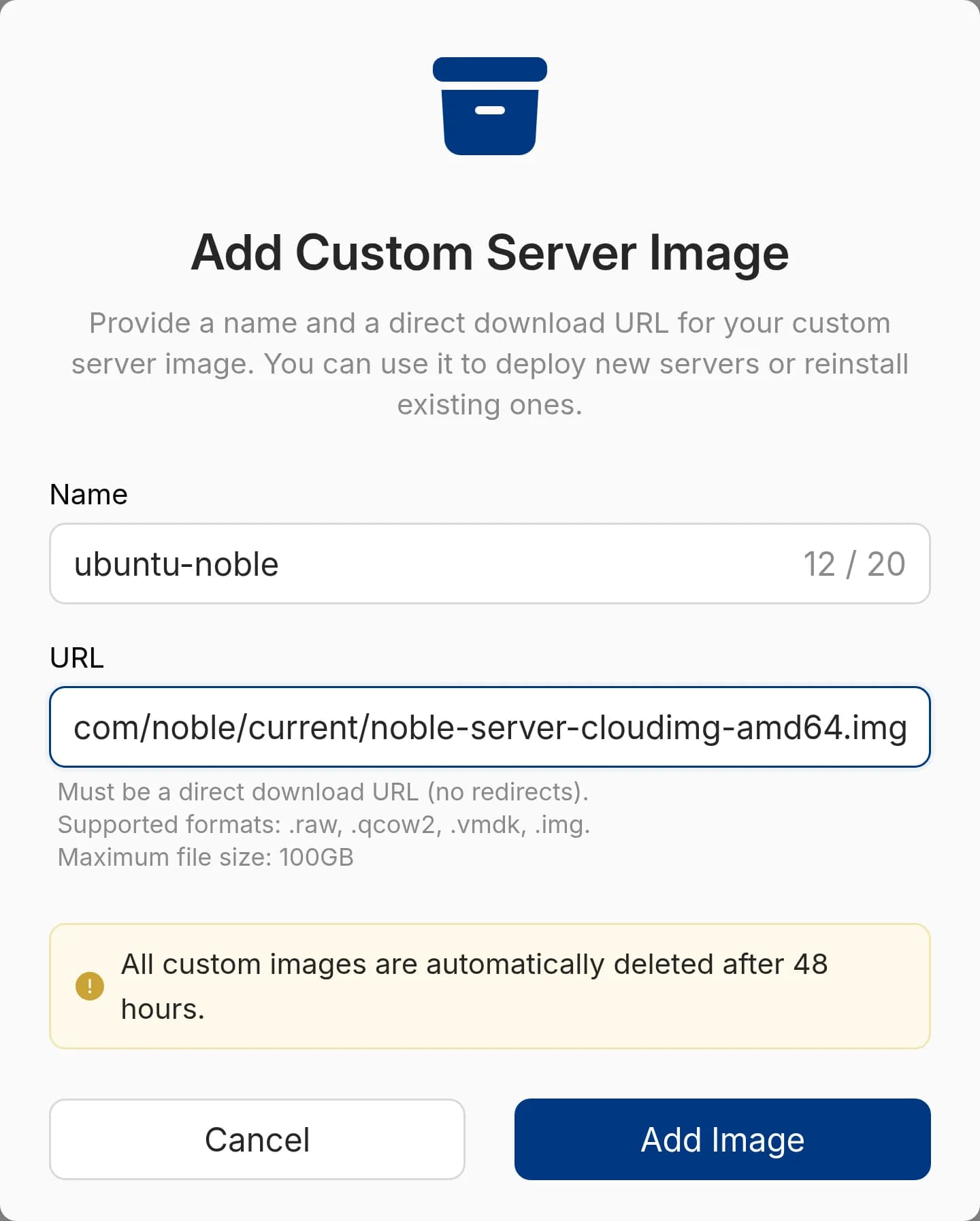
The status will become Downloading... while we fetch the file and it will change to Ready when the image can be used. If the download fails, the image is removed and its status will become Deleted. In that case, ensure that the link still works and add the image again.
When you no longer need an image, simply click Delete and confirm. You can't delete an image while it is still downloading. A deleted or expired image stays in the list for about two weeks after it has expired, with a Redownload button that will fetch it from the same link and will start a new 48-hour period.
Send a name and the link as url to Add a custom server image. The token needs the write ability (Authentication).
curl --request POST "https://api.vpsbg.eu/v1/custom-server-images" \
  --header "Accept: application/json" \
  --header "Content-Type: application/json" \
  --header "Authorization: Bearer ${VPSBG_API_TOKEN}" \
  --data '{"name": "ubuntu-noble", "url": "https://cloud-images.ubuntu.com/noble/current/noble-server-cloudimg-amd64.img"}'
Replace:
ubuntu-noblewith a name of up to 20 characters- the
urlvalue with the direct link to your image
The response carries the image's id, which you use to deploy a server:
{
  "id": 31,
  "status": "downloading",
  "name": "ubuntu-noble",
  "url": "https://cloud-images.ubuntu.com/noble/current/noble-server-cloudimg-amd64.img",
  "size": 0,
  "downloaded": 0,
  "created_at": "2026-10-14T08:41:22.000000Z",
  "deletion_at": "2026-10-16T08:41:22.000000Z",
  "deleted_at": null
}
List custom server images shows the progress. The image is ready when its status reads downloaded. Delete a custom server image removes it.
How to deploy a server from a custom imageCopy link
To deploy a server with a custom image, click on the Order a Service button and select Deploy Server. This will take you to the configurator where you can choose your hosting plan and billing period. Next open the Custom Images tab in the Server Image section and select an image that you would like to use (status needs to be Ready).
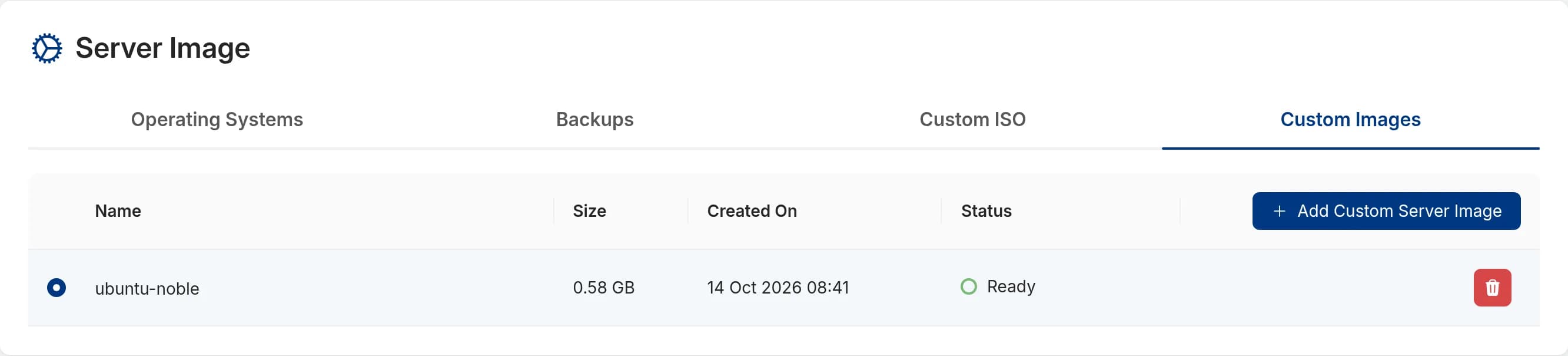
Then, in the Authentication section, choose an SSH key or add a root password. Cloud-init will set your chosen credentials to the root user on the first boot. You can add a startup script as well. Finally to finish the configuration, click Order Now.
Send custom_server_image_id instead of image_id when you deploy a server. A deploy from a custom image still needs ssh_keys or a password (or a user_data startup script that sets its own logins).
curl --request POST "https://api.vpsbg.eu/v1/servers" \
  --header "Accept: application/json" \
  --header "Content-Type: application/json" \
  --header "Authorization: Bearer ${VPSBG_API_TOKEN}" \
  --data '{"name": "web-1.example.com", "plan": "cloud-vps-1gb", "billing_cycle": "1", "custom_server_image_id": 31, "ssh_keys": [42]}'
Replace:
web-1.example.comwith your server's hostnamecloud-vps-1gbwith a plan'slabel_keyfrom List plans31with theidof an image whosestatusisdownloaded42with theidof one of your SSH keys
How to reinstall a server from a custom imageCopy link
When you reinstall a server, everything on the disk will be erased. To ensure that nothing gets lost, we recommend you take a manual backup first.
To reinstall from a custom image, start by opening Servers and clicking on the Manage button next to the server that you wish to reinstall. Next, open the Reinstall tab, switch to Custom Server Images and select an image. In the Authentication section, select an SSH key or set a root password (cloud-init will apply it to root on the first boot). Finally, click on Reinstall and confirm. The console will ask you to verify your identity before reinstallation starts.
Send custom_server_image_id to Reinstall a server. ssh_keys and password are optional here. If you send neither, we don't set a new login, so you need a way in that is already built into the image, such as a key in /root/.ssh/authorized_keys.
curl --request POST "https://api.vpsbg.eu/v1/servers/1234/reinstall" \
  --header "Accept: application/json" \
  --header "Content-Type: application/json" \
  --header "Authorization: Bearer ${VPSBG_API_TOKEN}" \
  --data '{"custom_server_image_id": 31, "ssh_keys": [42]}'
Replace:
1234with your server'sid31with theidof an image whosestatusisdownloaded42with theidof one of your SSH keys
How to check the server after the first bootCopy link
Once the server is active, log in via SSH and run these commands to confirm that the image picked up everything:
cloud-init status --longThe output should read status: done.
ip -4 addressYou should see the server's IPv4 address with a /32 prefix.
df -h /The size of / should be close to the disk size of your plan.