Startup scripts
Run a shell script or a cloud-config document when the server boots up for the first time, or install a ready-made app when you deploy.
We at VPSBG are proud to introduce startup scripts - a script that runs once, as root, when a new server boots up for the first time. You can easily use it to install packages, write config files and start services right after deploying, enabling you to directly start using the server when you log in, skipping the tedious setup process entirely.
The way it works is that we supply the script to cloud-init, which ships with every Linux image we offer. Given that your root password and SSH keys are already set before the script starts, you can still log into your server even if the script fails during deployment.
Script formatsCopy link
Our scripts are formatted in a very simple way with the first line of the script telling cloud-init how to read it:
- A shebang such as
#!/bin/bashruns the file as a shell script. #cloud-configreads it as a YAML document of cloud-init modules, such aspackages,write_filesandruncmd.
A script can be up to 64 KB (65,536 bytes). We purposefully refuse cloud-init's #include directive, because it makes the server download and run code from a URL.
As already mentioned, startup scripts work only on Linux images. This also includes your own custom images if they have cloud-init installed. However, they are not available for Windows Server, as well as when you boot from a custom ISO or when you restore a backup.
How to add a startup scriptCopy link
First, start by configuring a new server in the VPSBG Console and pick a Linux image from the Operating Systems list. Next, scroll down to the Startup script section and click on the Set script button.

You will now see a panel opening on the right side of the screen. Here, you can directly select one of the Popular apps or you can also click on the Custom script to write your own script.
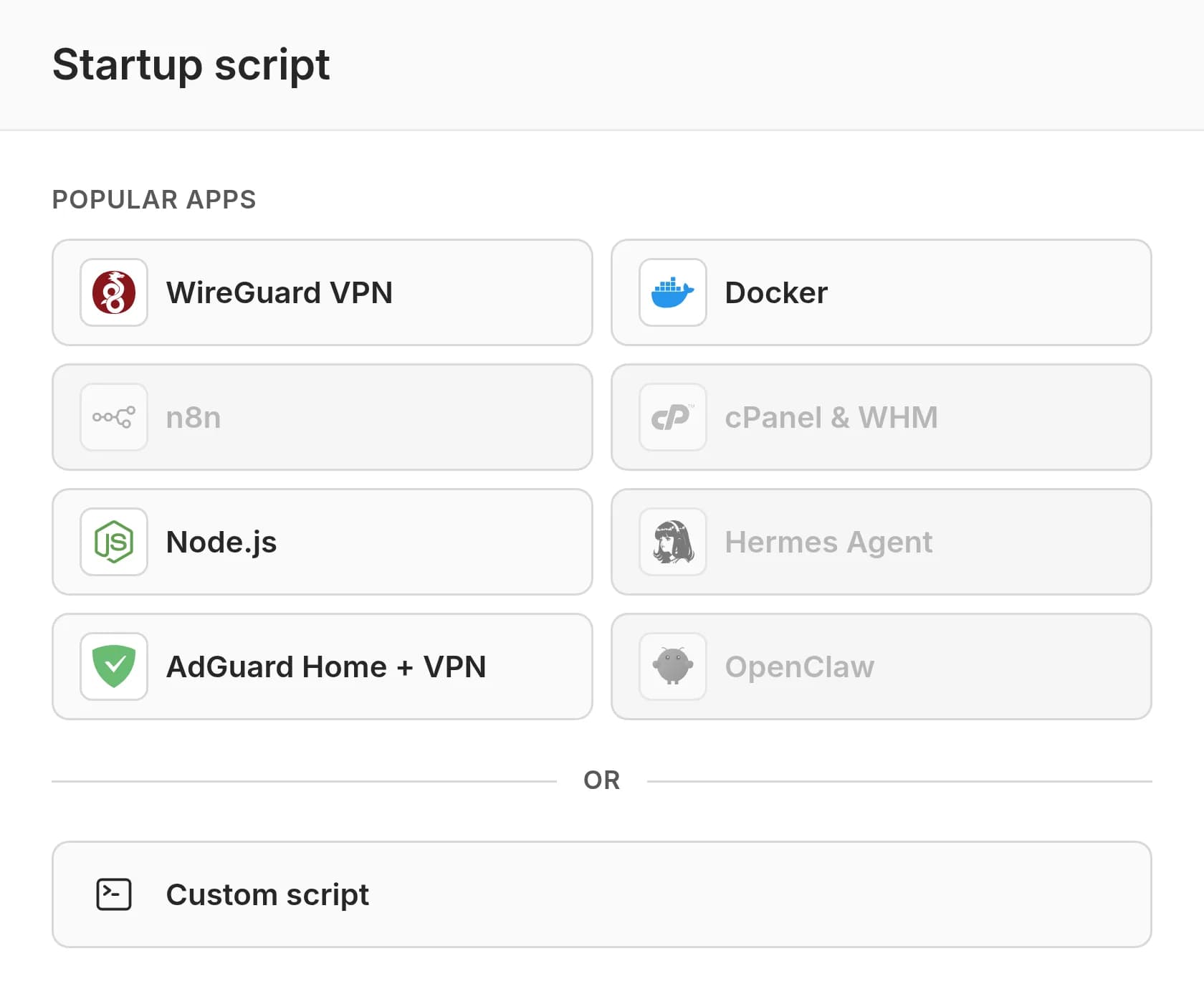
When you've added the script, click Set script at the bottom of the panel. The section will now accept the script and the buttons will change to Edit and Remove script if you wish to make any changes.

That's it! Simply finish the configuration and click Order Now. The script will then run on the server's first boot.
Send the script in user_data when you deploy a server. The token needs the write ability (Authentication).
curl --request POST "https://api.vpsbg.eu/v1/servers" \
  --header "Accept: application/json" \
  --header "Content-Type: application/json" \
  --header "Authorization: Bearer ${VPSBG_API_TOKEN}" \
  --data '{
    "name": "web-1.example.com",
    "plan": "cloud-vps-1gb",
    "billing_cycle": "1",
    "image_id": 9,
    "ssh_keys": [42],
    "user_data": "#!/bin/bash\napt-get update\napt-get install -y nginx\n"
  }'
user_data is a JSON string, so every line break in the script is written as \n.
Replace:
web-1.example.comwith your server's hostnamecloud-vps-1gbwith a plan'slabel_keyfrom List plans9with an imageidfrom List server images42with a keyidfrom List SSH keys
Install a popular appCopy link
To install a popular application, pick one from Popular apps and the startup script will be automatically loaded into the editor. Below it, you will see a short description which will let you know what is being installed, the firewall ports it needs as well as a command to check that everything has been successfully installed after the system boots. Additionally, you can also read the whole script before you set it and change anything if you need to.
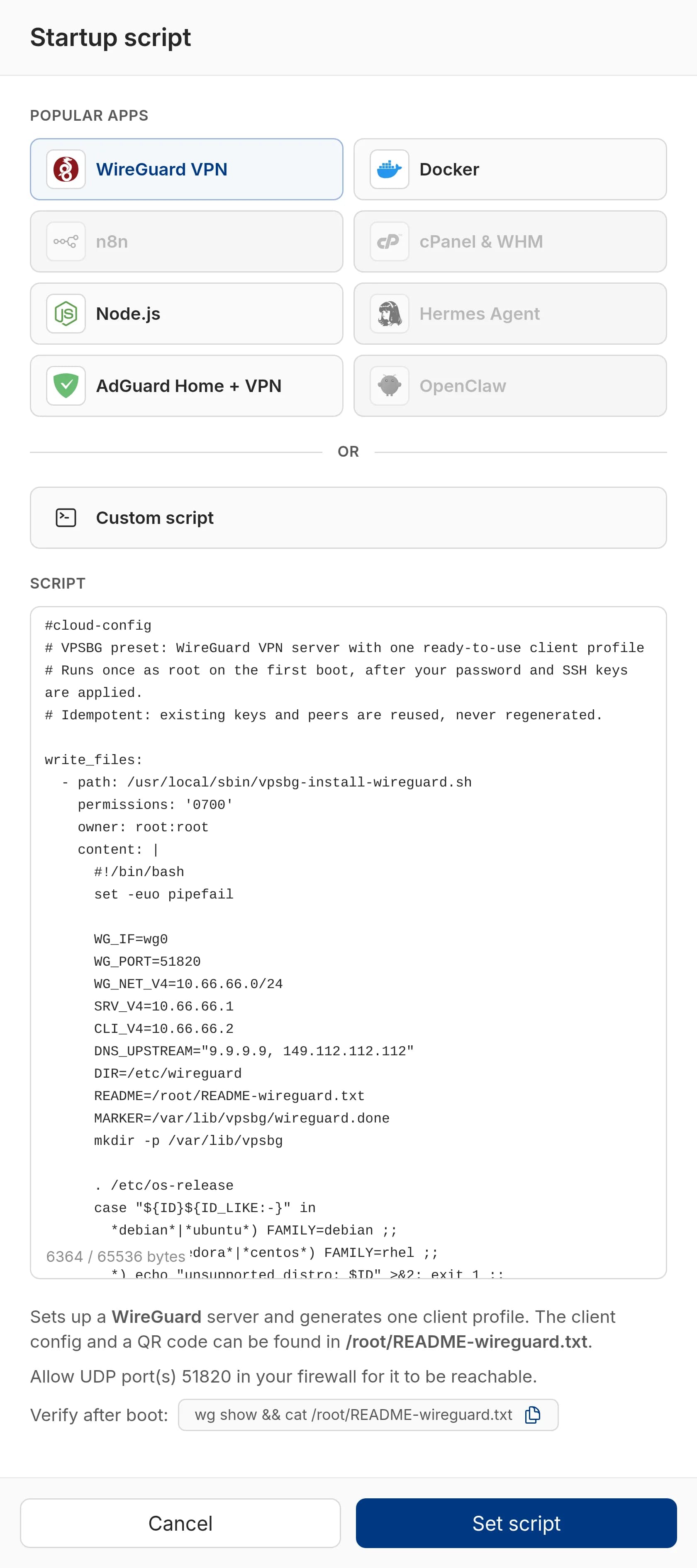
After booting, each app will write its notes to a README file that can be found in /root, including any generated credentials, client profiles and tunnel commands.
| App | What it sets up | Requirements | Ports to allow |
|---|---|---|---|
| WireGuard VPN | A WireGuard server with one client profile and a QR code for connecting | Any Linux image | UDP 51820 |
| Docker | Docker CE with the Compose v2 plugin and capped container logs | Any Linux image | None |
| n8n | Docker and the n8n workflow automation tool, listening on localhost only | 2 GB RAM | None, you connect via an SSH tunnel |
| cPanel & WHM | cPanel & WHM without a license (you can start the 15-day trial from WHM) | Ubuntu 24.04 or AlmaLinux 9 or 10, 2 GB RAM, a fully qualified hostname | TCP 80, 443, 2083, 2087, 2096 |
| Node.js | The current Node.js LTS from NodeSource and pm2 as a systemd service | Any Linux image | None |
| Hermes Agent | Hermes Agent by Nous Research, a self-hosted AI agent | 2 GB RAM | None |
| AdGuard Home + VPN | A WireGuard server whose clients use AdGuard Home for ad-blocking DNS | Any Linux image | UDP 51820 |
| OpenClaw | Node.js 24 and the OpenClaw self-hosted AI assistant, listening on localhost only | 2 GB RAM | None, you connect via an SSH tunnel |
It is important to note that some apps need at least 2 GB of RAM or a specific operating system, so make sure to consult the table above.
cPanel & WHM can take from 30 to 90 minutes to install! Additionally, it will also turn off the OS firewall (and SELinux on AlmaLinux) because cPanel requires it. The installer will stop during the first boot if the hostname is not fully qualified (valid FQDN), such as server.example.com so make sure to set the hostname appropriately before you order.
If a cloud firewall protects the server, make sure to add a rule for the app's ports with the right protocol. For example, WireGuard listens on UDP, so a TCP rule for port 51820 leaves the VPN unreachable.
The API has no app picker, meaning that if you wish to deploy an app through the API, you will need to copy its script from the editor and send it as user_data.
Write a custom scriptCopy link
To write a custom script, click on the Custom script button. This will bring up a text area where you can manually write or directly paste a script. The counter on the bottom left shows how many of the 65,536 bytes you have used.
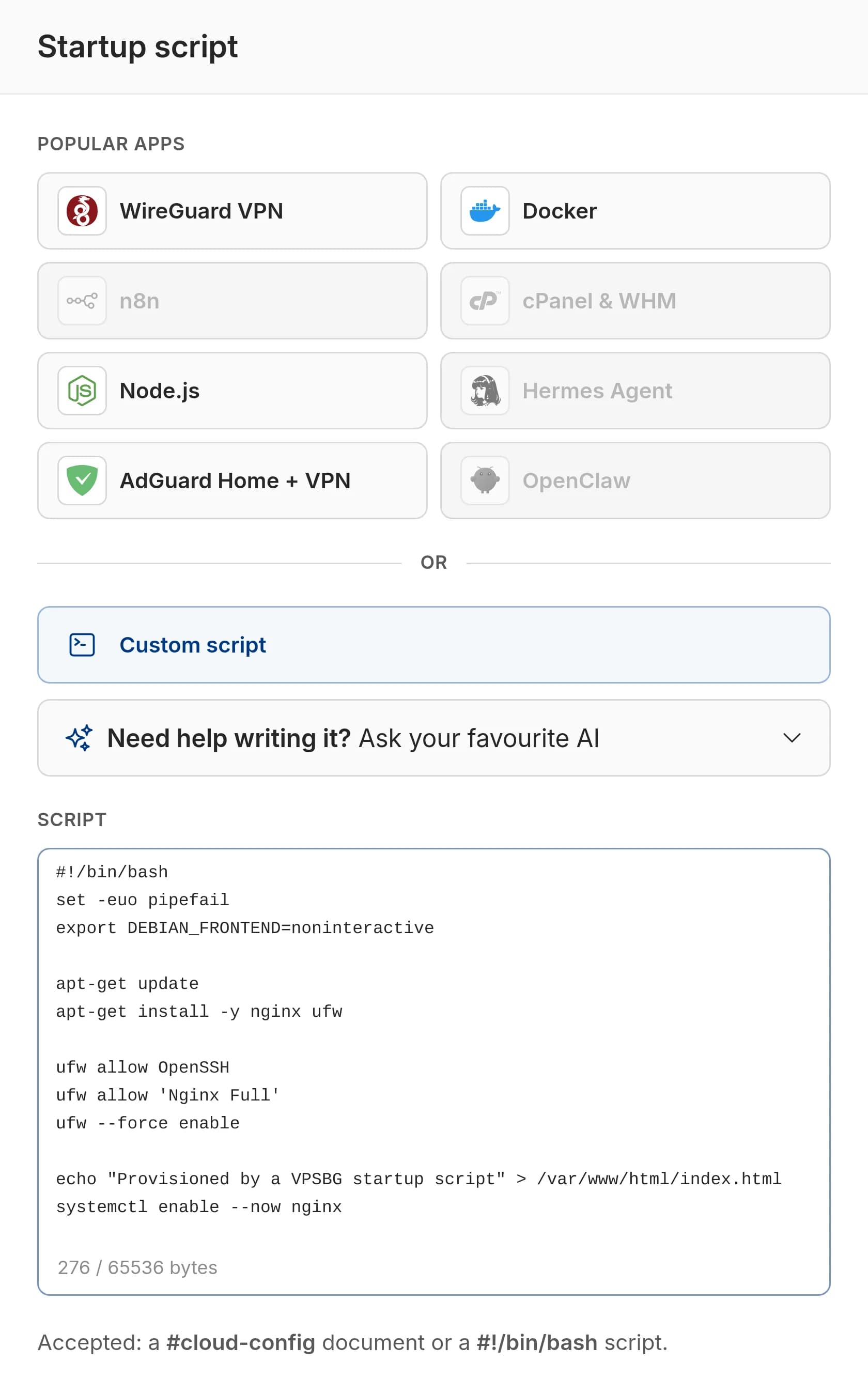
As you type, the editor checks the script, validating it in real time. It won't let you set an empty script, one over 64 KB, or one that starts with anything other than #cloud-config or a shebang.
In a #cloud-config document, keys that we also set for the hostname, root password and SSH keys keep our values. A top-level users or ssh_authorized_keys entry might not take effect, so add extra users with useradd under runcmd and make sure to manage keys through SSH keys.
How to ask an AI assistantCopy link
If you want to create a script for a particular app but aren't completely sure how to do it, you can always use the ask an AI assistant option. Under Custom script, expand Need help writing it? Ask your favourite AI. Here, you can just describe what the server should do and click on either Ask ChatGPT or Ask Claude. The selected assistant will then open in a new tab with your request and our script rules already filled in, so you only need to paste its answer into the editor.
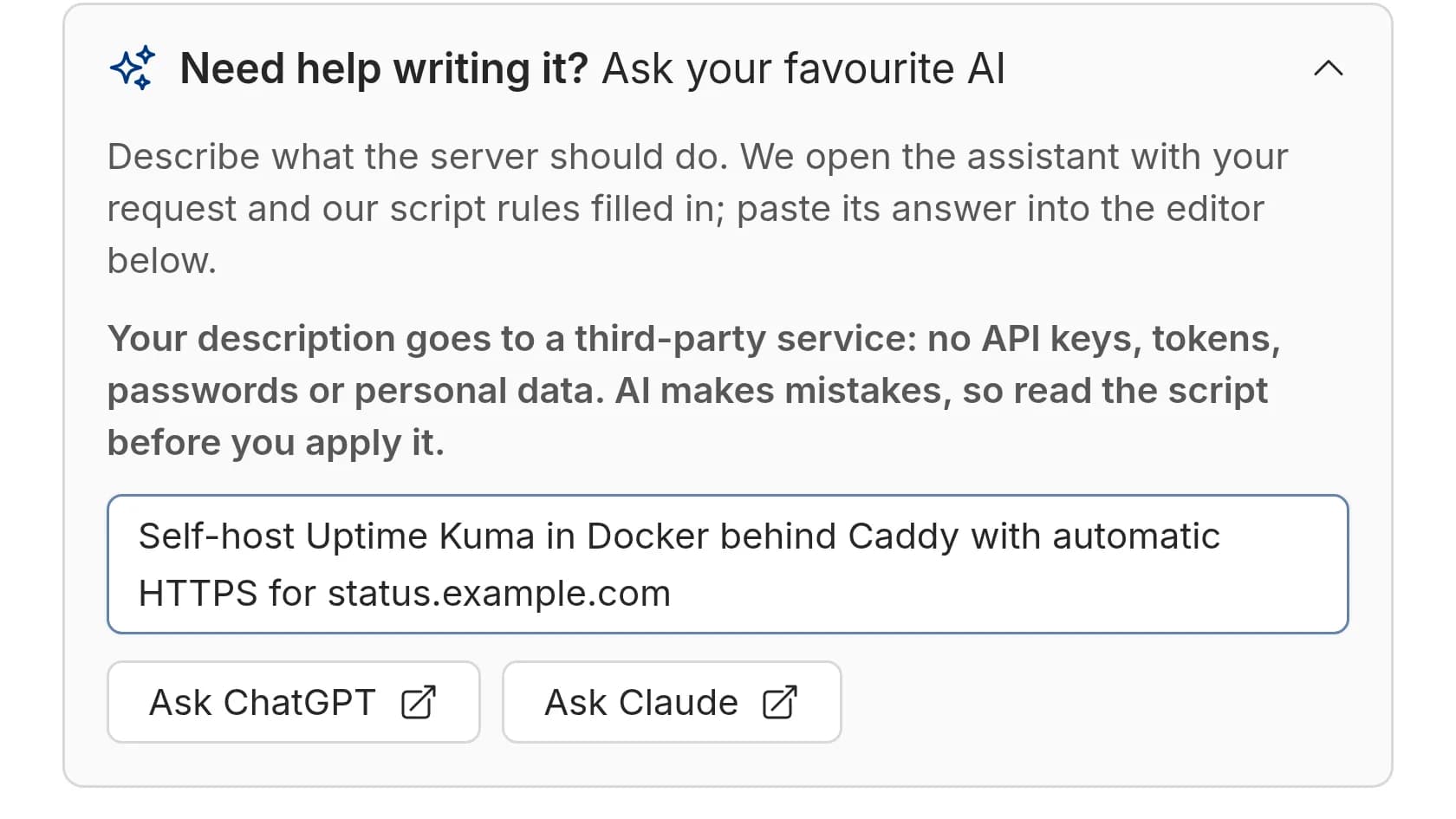
It is important to note that when doing this, your description will go to a third-party service, so make sure to keep API keys, passwords and personal data out of it. Also, read the generated script before you set it, because AI assistants can make mistakes.
Follow the script on a running serverCopy link
The server is considered reachable as soon as it becomes active, although the script will keep running in the background. During the run, the server's page will show a Startup Script Running notice, where you will be able to see the name of the script and its status (for example, Docker startup script · running). We recommend waiting for the run to finish before you restart the server or make any changes to it, so the script can complete every step.
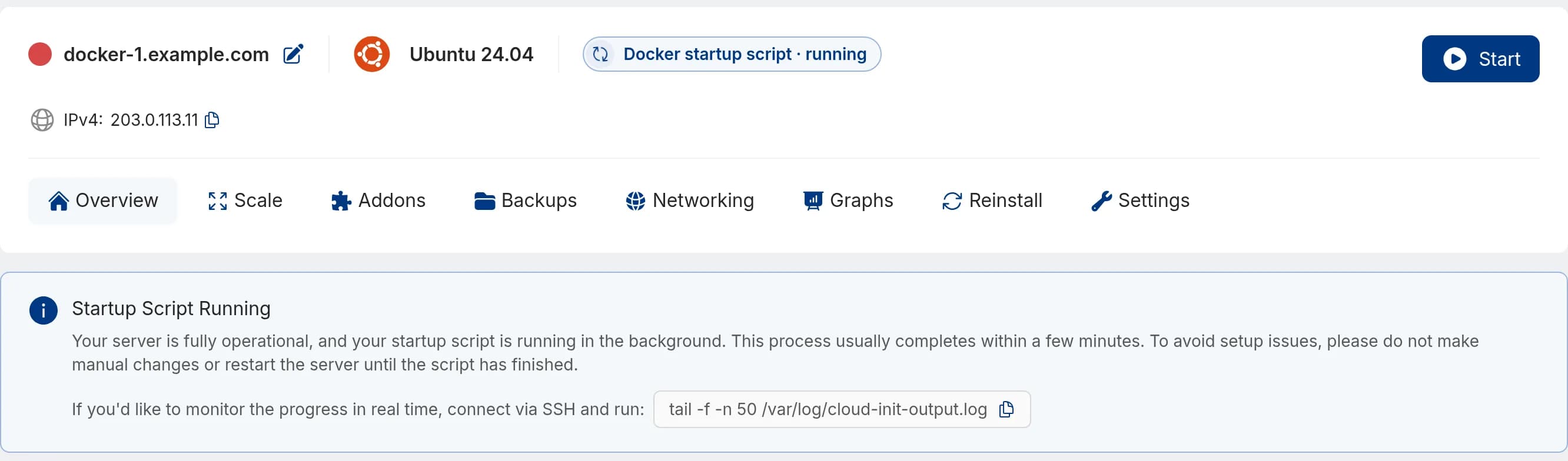
If you wish to monitor the output live, you can connect to your server over SSH and run:
tail -f -n 50 /var/log/cloud-init-output.logIf you'd rather wait until cloud-init has finished and see the result, then run:
cloud-init status --wait --longThe first line will read status: done when every step has succeeded, or status: error when one has failed, with the failing module listed under errors.
The public API doesn't report progress, so make sure to use SSH or the console for this step.
What to do if the script failsCopy link
If the script happens to fail during provisioning, the server's page will show Startup Script Finished With Errors and the header label will end in · failed. However, the server itself will be running and your credentials will still work.
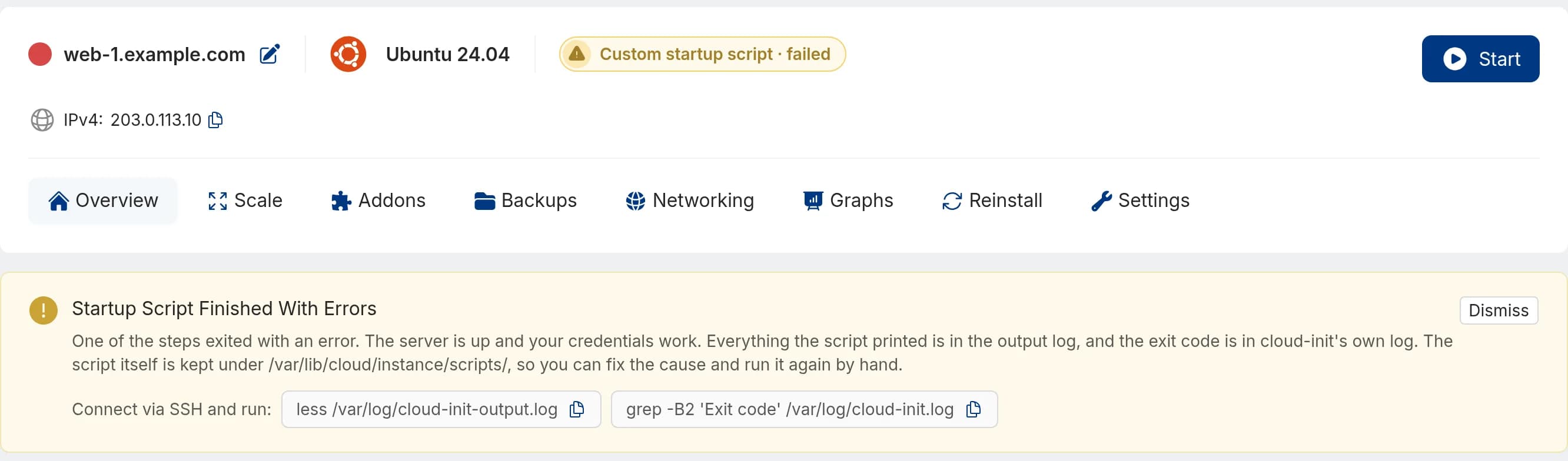
To address the problems, first, check the output log to see where the script stopped:
less /var/log/cloud-init-output.logNext, look for the exit code in cloud-init's own log:
grep -B2 'Exit code' /var/log/cloud-init.logBecause a shell script stays on the server under /var/lib/cloud/instance/scripts/, you can fix the cause and manually run it again.
How to clear the failed stateCopy link
Open the server's Overview page and click on the Dismiss button in the top right corner of the Startup Script Finished With Errors notice. The notice closes and the header label drops · failed. The script and the server stay as they are, so you can dismiss the notice before or after you fix the cause.
Call Clear a startup script failure with the server's id. It will answer 204 No Content and will leave the script and the server untouched.
curl --request DELETE "https://api.vpsbg.eu/v1/servers/1234/startup-script/failure" \
  --header "Accept: application/json" \
  --header "Authorization: Bearer ${VPSBG_API_TOKEN}"
How to view a server's startup scriptCopy link
To view a server's startup script you can open the server and click the startup script label in its header, right next to the operating system - for example Custom startup script or Docker startup script.
A script can hold sensitive values, so the console will prompt you to confirm your identity with the Additional Confirmation box, asking for a 2fa code or your account password. After you click Verify, the Startup script panel will open with the script, a copy button and the command to read the output log over SSH.
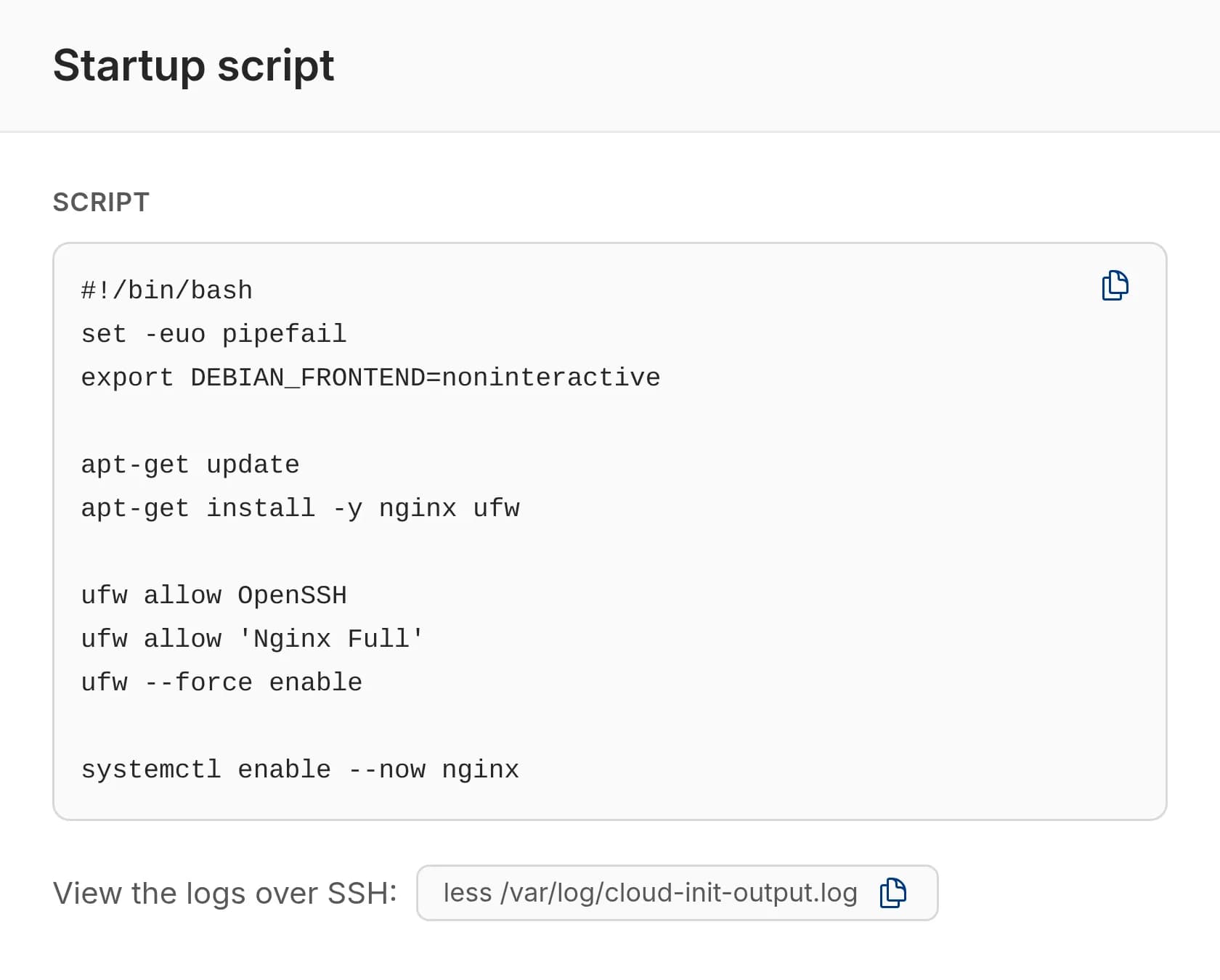
Get the startup script returns the script stored for the server. A server without one will answer 404.
curl "https://api.vpsbg.eu/v1/servers/1234/startup-script" \
  --header "Accept: application/json" \
  --header "Authorization: Bearer ${VPSBG_API_TOKEN}"
The response carries the script in user_data, its format in type (script or cloud_init) and its size and SHA-256 hash:
{
  "user_data": "#!/bin/bash\nset -euo pipefail\n...",
  "type": "script",
  "preset": null,
  "bytes": 276,
  "sha256": "3f1c...",
  "updated_at": "2026-09-28T12:04:11.000000Z"
}
How to reinstall with a startup scriptCopy link
Given that reinstalling will wipe the disk, the script will need to run again to rebuild what it had already set up.
Open the server and navigate to the Reinstall tab. Next, find the Startup script section. If the server has a stored script, it will be automatically pre-selected, and the reinstall will run it again on the fresh system:
- To change it, click Edit, adjust the script and click Set script.
- To reinstall without it, click Remove script and confirm with Remove.
If the server has no script, the section will show Not set. In that case, click on the Set script button to add one, similarly to how you would on deploy. If you wish to reinstall to Windows Server the section will be disabled and the stored script won't be carried over.
Reinstall a server with keep_startup_script set to true to run the stored script again:
curl --request POST "https://api.vpsbg.eu/v1/servers/1234/reinstall" \
  --header "Accept: application/json" \
  --header "Content-Type: application/json" \
  --header "Authorization: Bearer ${VPSBG_API_TOKEN}" \
  --data '{"image_id": 9, "keep_startup_script": true}'
To run a different script instead, send it in user_data the same way as in Add a startup script. However, the two fields can't be combined, and if you send neither, the stored script is deleted.
Make scripts reliableCopy link
- Stop at the first error.
set -euo pipefailat the top of a shell script turns a half-finished setup into a reported failure. - Never wait for input. Nobody can answer a prompt during the first boot. Export
DEBIAN_FRONTEND=noninteractiveand pass-y(or the tool's own flag) to every installer. - Make reruns harmless. A reinstall reruns the saved script and you might rerun it by hand after a failure. Check before you act, or guard one-time steps with a marker file such as
/var/lib/myapp.done. - Keep secrets out. We store the script with the server and a copy stays on it under
/var/lib/cloud/instance/, which is readable by root. Fetch tokens at run time from your secret manager or generate them on the server into a root-only file. - Branch on the distribution when you need to. Source
/etc/os-releaseand switch on$IDif one script has to work on both Ubuntu and AlmaLinux.