How to create and manage a cloud firewall
Learn how to create and manage a cloud firewall by adding inbound and outbound traffic rules and how to create and use custom IP lists.
Get additional control over your traffic with a cloud firewall. Learn how to create and manage inbound and outbound rules and how to utilize custom IP lists.
How to create a cloud firewallCopy link
To set up a cloud firewall, you will need to first log into the VPSBG Console. From there, navigate over to the Networking menu on the side and select Cloud Firewall from the dropdown as shown:
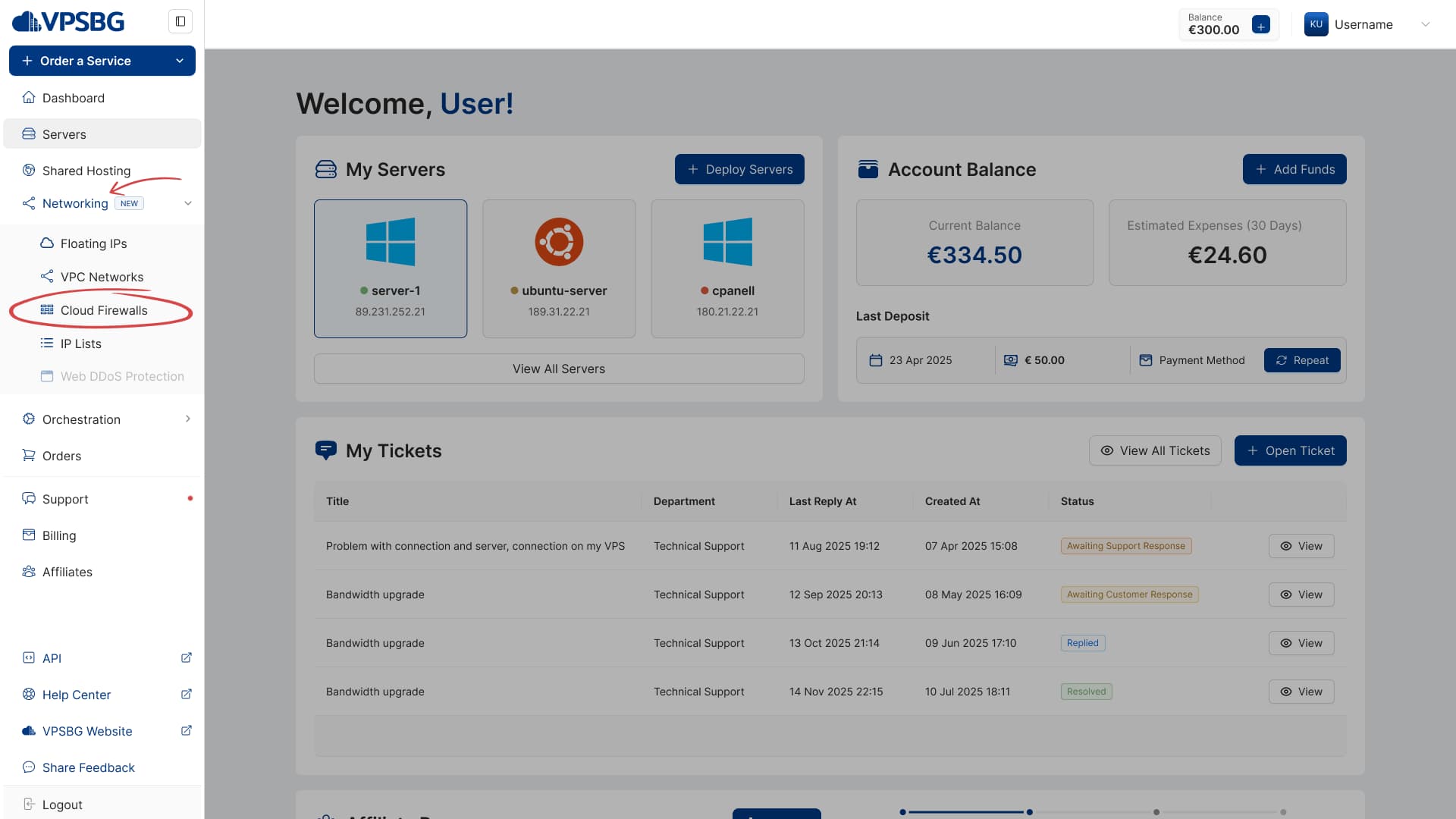
This will take you to the listing page where you will be able to see and manage all of your created firewalls.
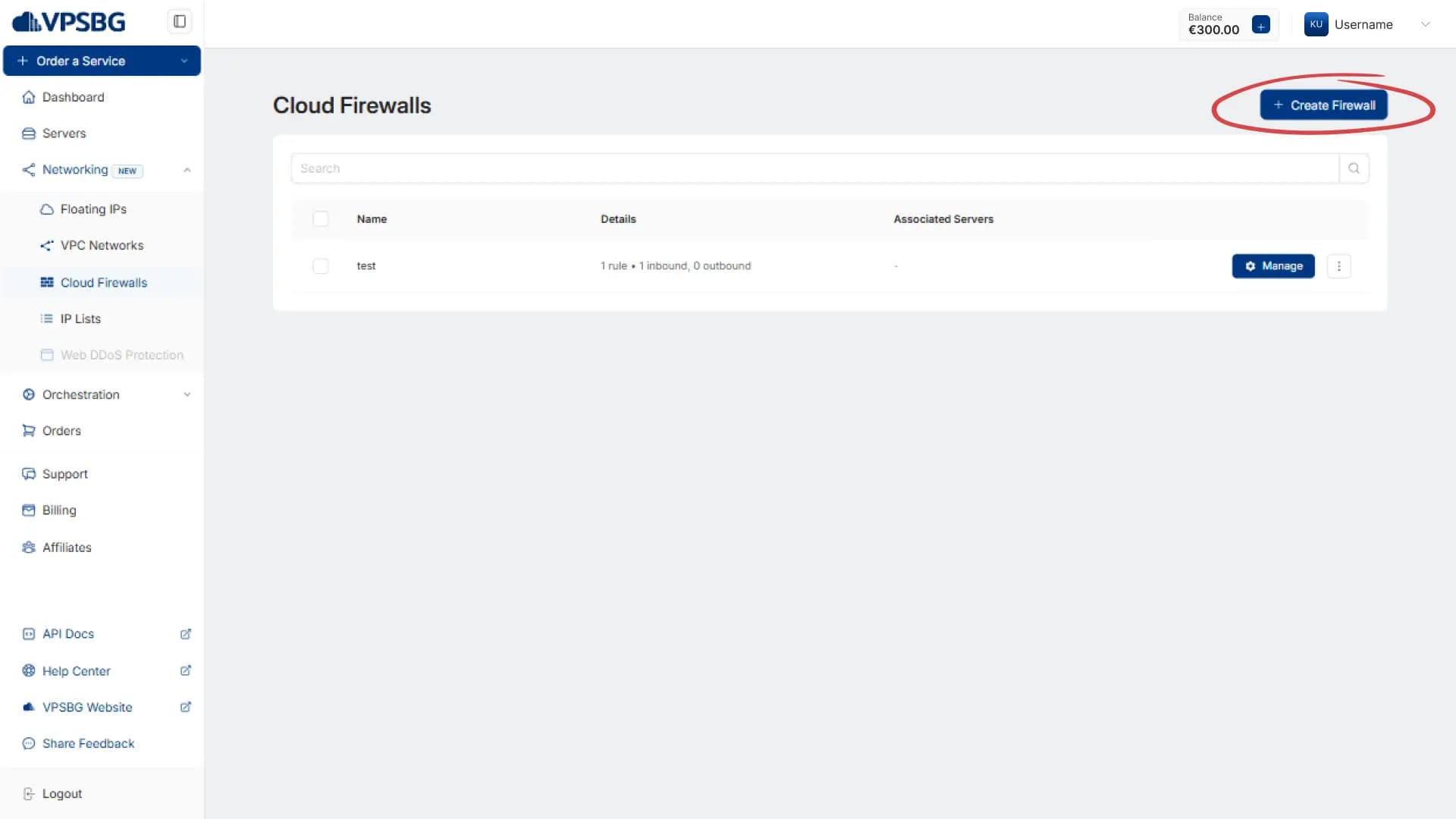
You can currently have up to 20 cloud firewalls in your account. If you require more, please contact us.
Once here, click on the create button in the top right:
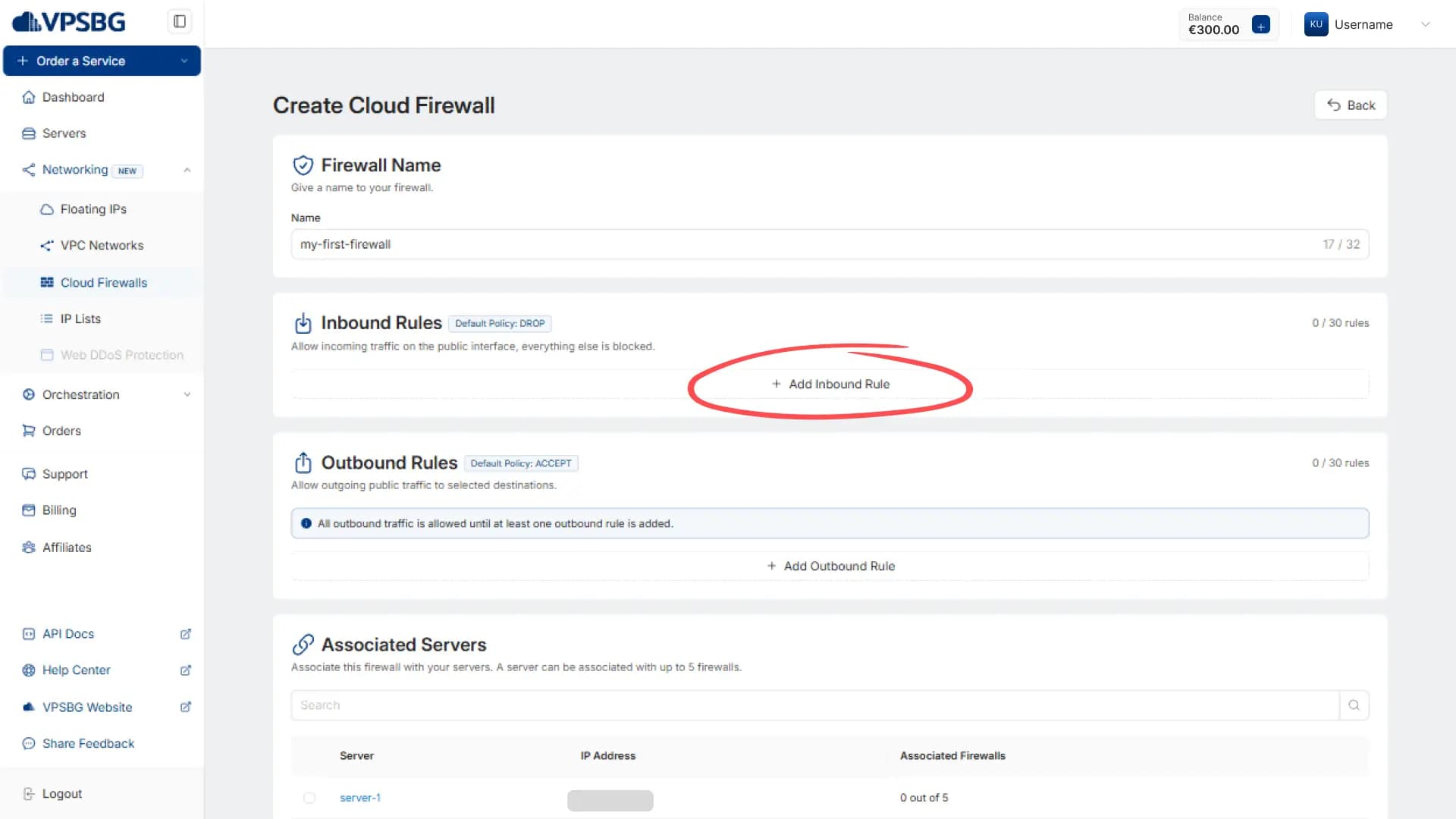
You will now be taken to the creation page. To begin, give your firewall a name. Next, it’s time to set up some rules. Inbound rules apply to traffic that is entering your network and outbound rules to traffic that is exiting.
By default, the firewall will automatically drop all traffic that matches the rules you create for your inbound rules and it will only accept the traffic that matches your outbound rules.
To create a new rule, simply click on the Add button:
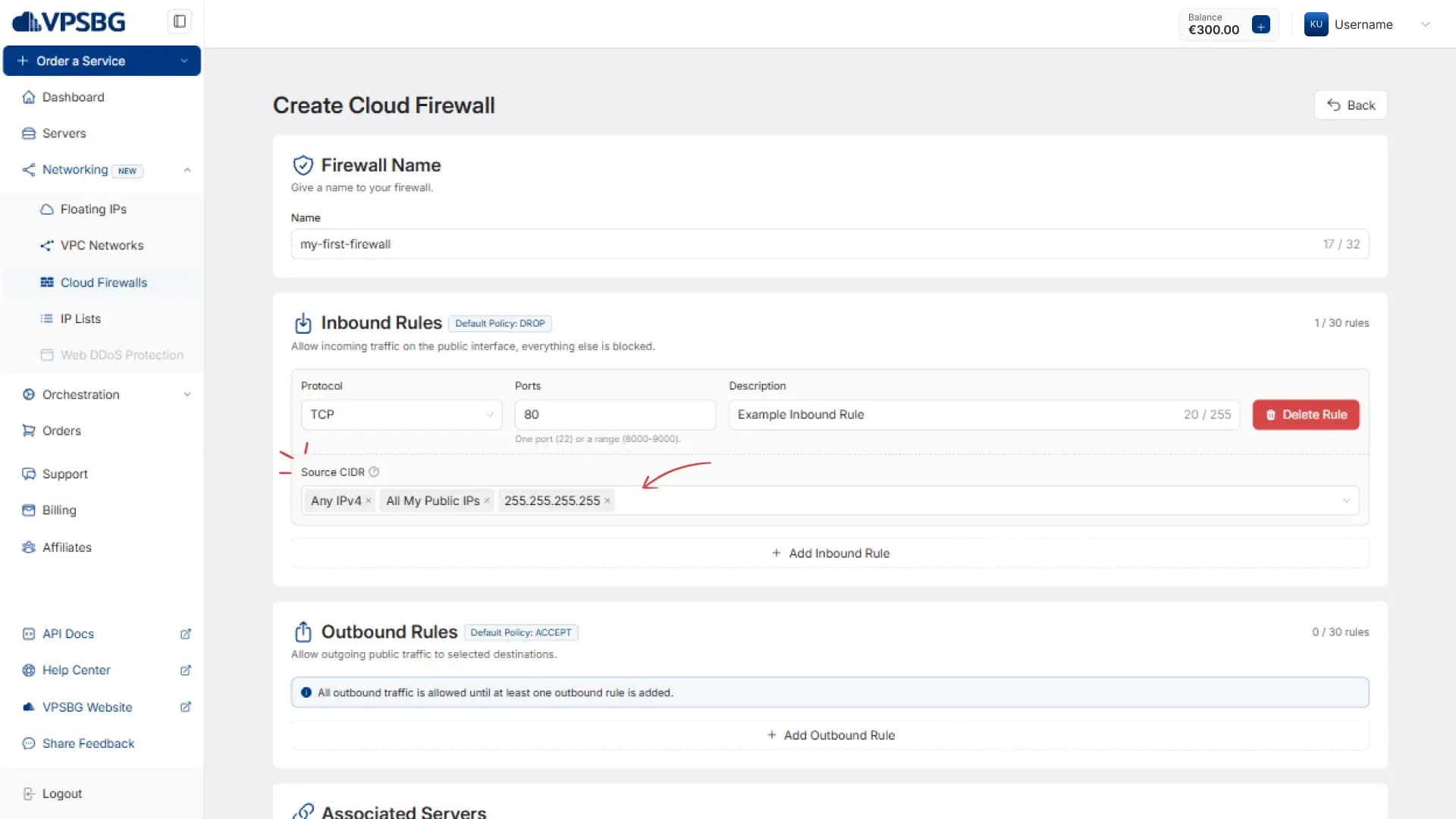
You will now see a set of inputs, starting with Protocol. Here select the protocol that you wish to set the rule for or choose ALL to apply for all incoming traffic.
Next is the Ports field, there you can add any port or port range for which the rule should take effect.
Description you can use to note what this rule is for so that you can distinguish between multiple ones if you have additional rules.
Finally, we have Source CIDR. This is both a dropdown and an input field, allowing you to select a list of pre-configured IP addresses for your account as well as to manually enter anything you would like. The dropdown will automatically feature options like Any IPv4, Any IPv6 and all My Public IPs, which include all of your servers’ IPs and all of your floating IPs. You can also type any IP addresses, one at a time and hitting Enter to submit.
Once you are done setting up the rules, navigate to the Associated Servers section and select the servers to which you wish to attach this firewall.
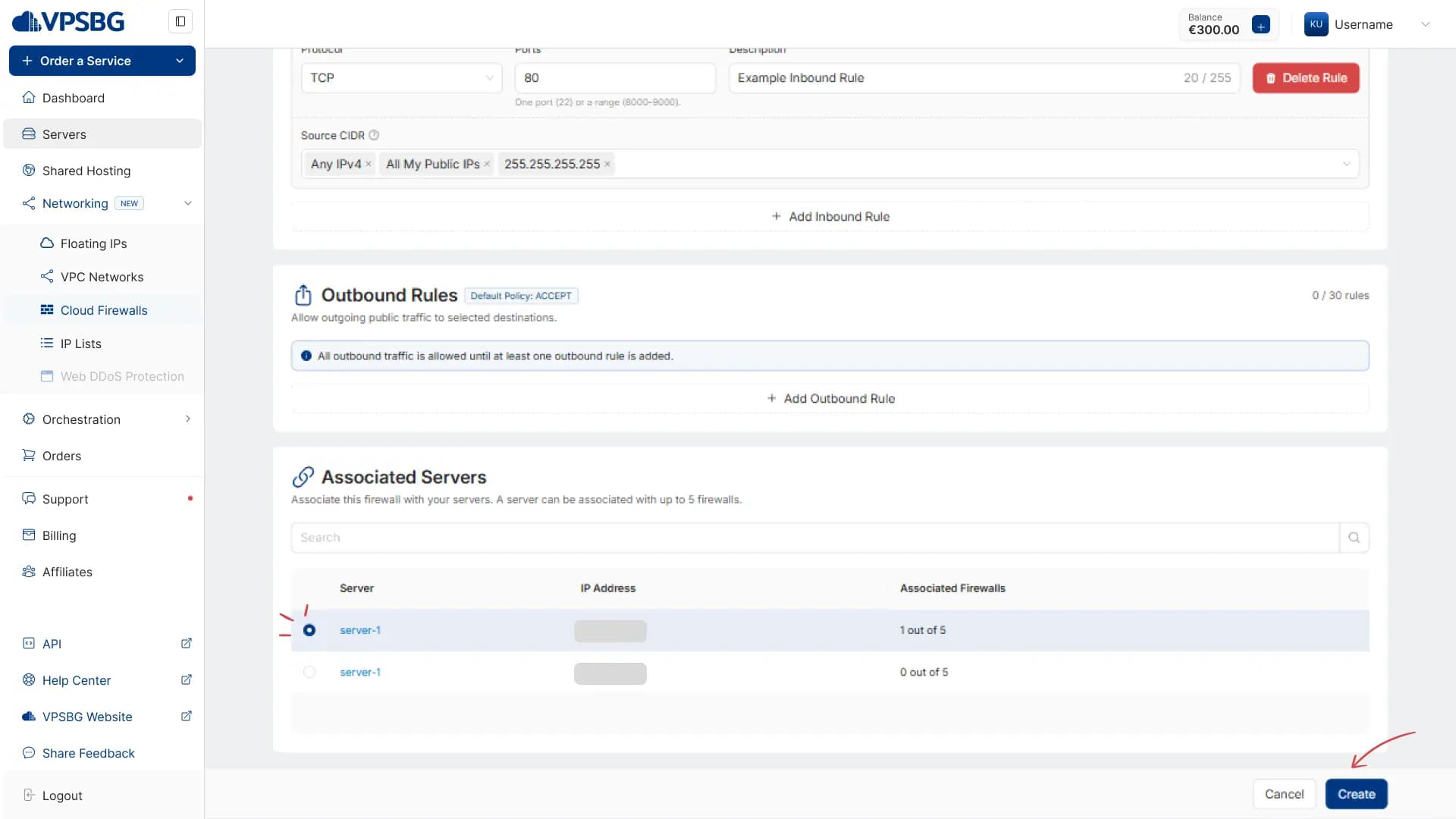
Click on the Create button and your cloud firewall will be ready to filter traffic.
Once created, each firewall can be cloned and deleted as well as renamed. Cloning will automatically recreate all inbound and outbound rules.
Deleting a firewall will detach it from your servers.
Additionally, you can also deploy a server with a firewall directly via the configurator.
How to create custom IP listsCopy link
We have also introduced the ability to create reusable, custom IP lists which you can attach between multiple cloud firewalls to save time. To create an IP list, go to the Networking menu again and select IP Lists.
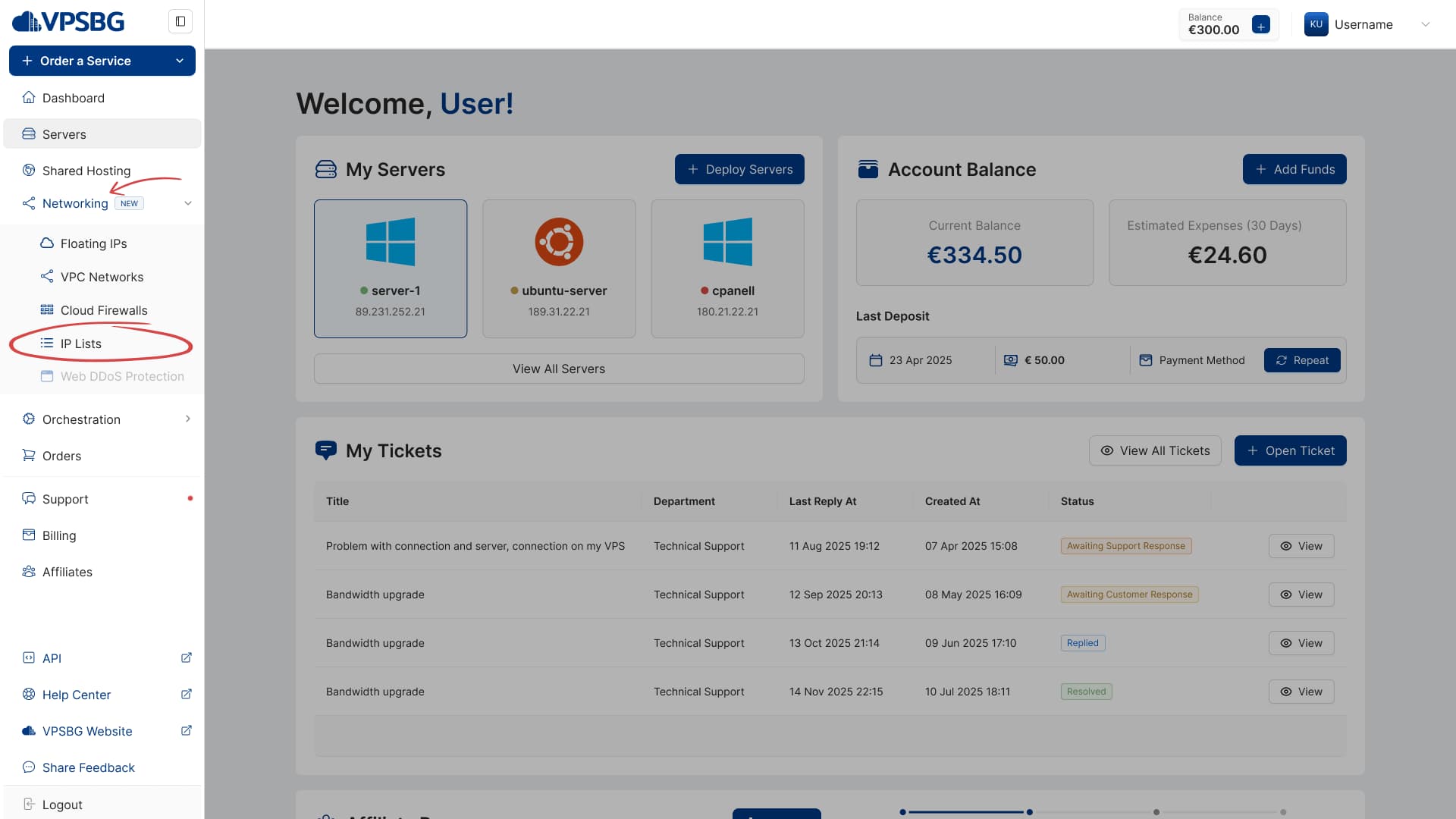
You will be taken to the listing page, where you will see All My Public IPs - the default system IP list that features all of your servers’ main IPs and your floating IP addresses.
Click on the Create IP List button and you will see the creation form. You will need to give your list a name, a short description and then you can enter up to 50 IPs, one per line. IPs can be single or in a range.
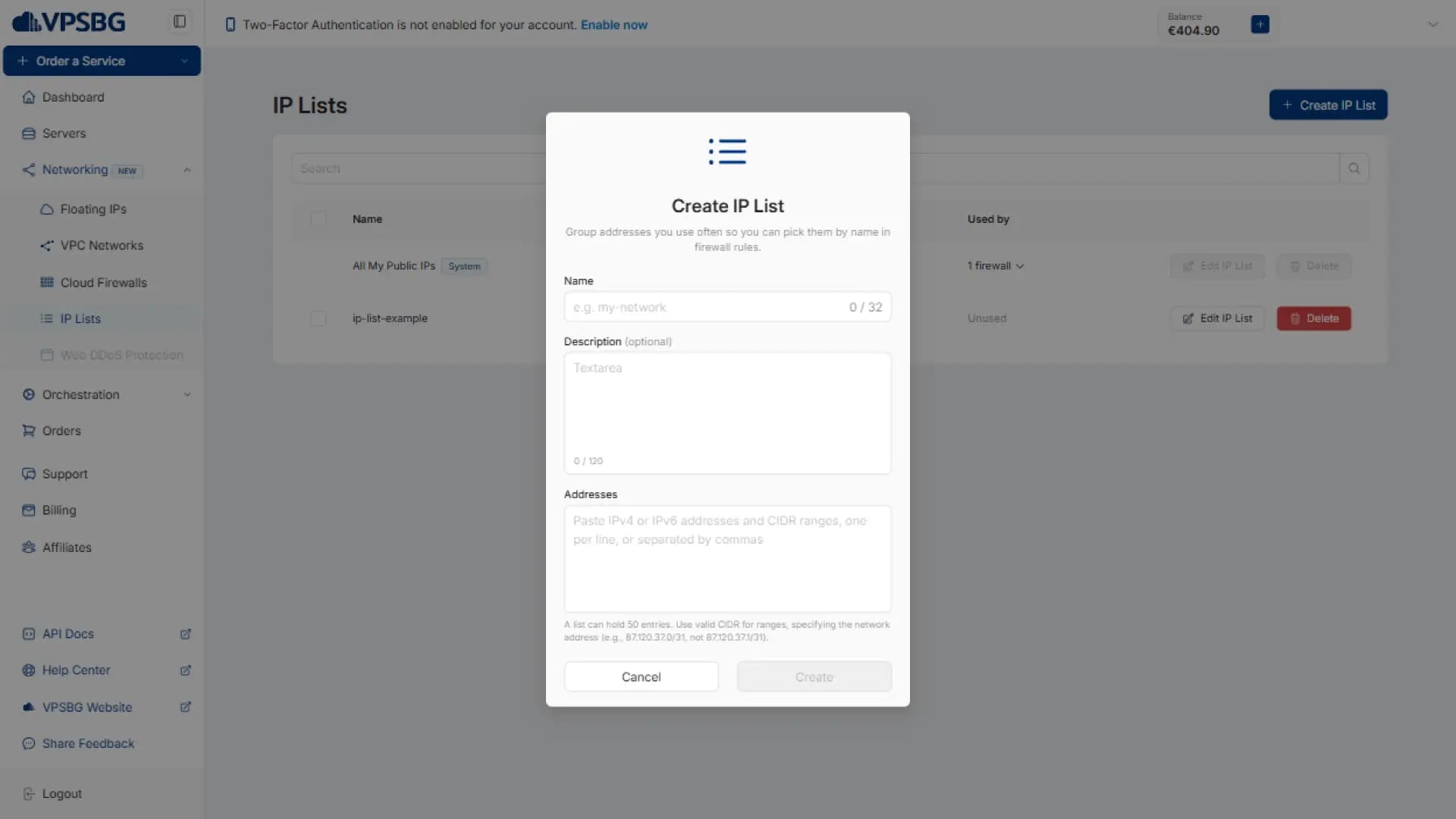
Once done, click Create and your list will be saved. Next time you open the dropdown in the Source CIDR field for a new or existing rule, you will be able to see your IP list.
How to manage a server with a firewallCopy link
Once you have attached a firewall to one or more of your servers, you will be able to see and manage it from the server’s page. To do so, open up the server’s management page and navigate to the Networking tab.
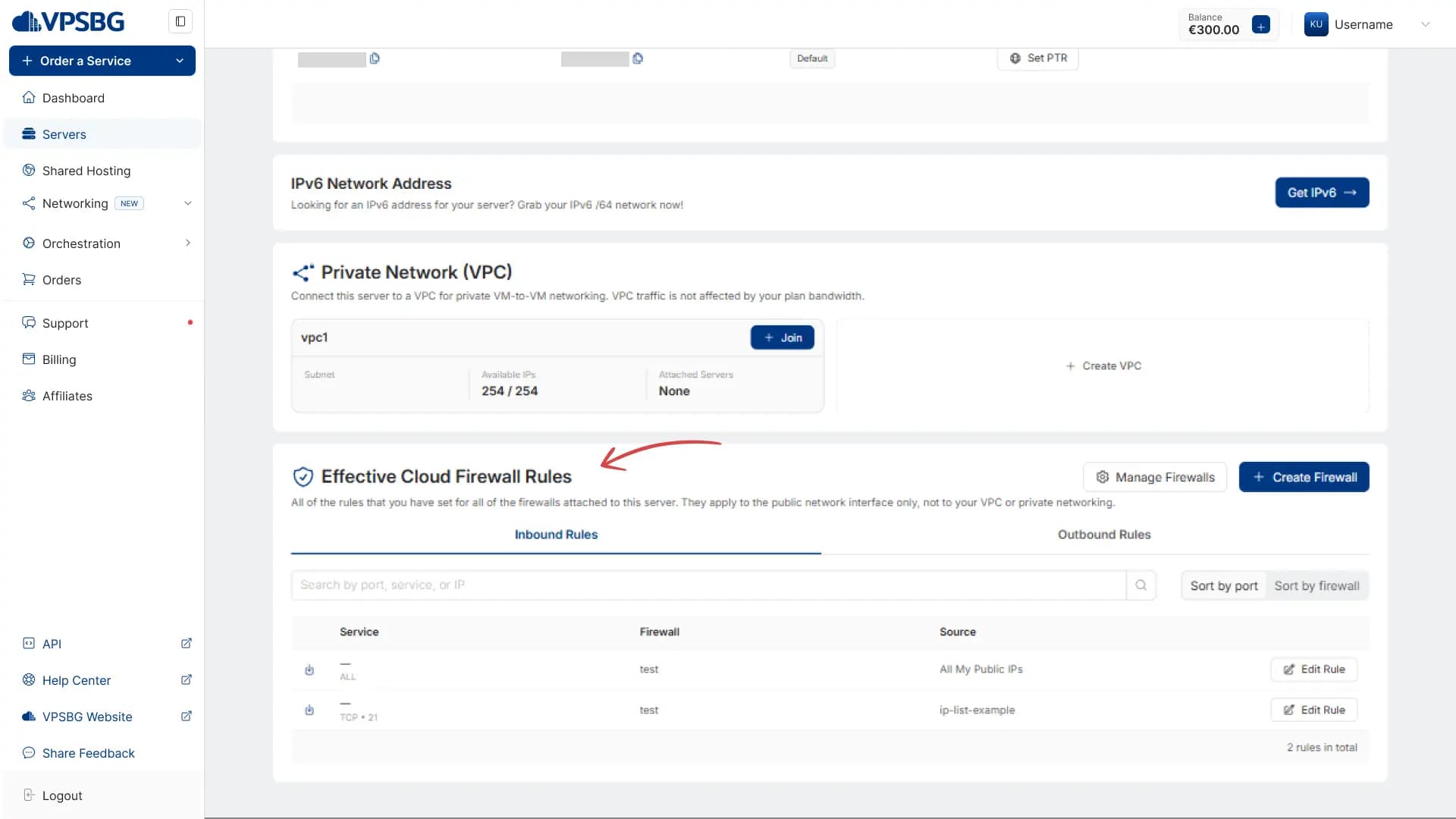
There you will see the cloud firewall section at the bottom. By default inbound rules are ordered by port, but you can also sort them via firewall. This table will contain all of the rules set for all firewalls associated with the current server.
One server can have up to 5 firewalls associated with it at any time and each firewall can have up to 60 rules.
Rules can be edited by clicking on the Edit Rule button and firewalls can be attached and detached using the Manage Firewalls button.