How to set up two-factor authentication (2FA) on your VPSBG account
You can now set up and activate 2-factor authentication on your VPSBG account! Learn how to install and enable it in order to protect your services!
It is crucial to keep your account safe! Granting others access to your Console can compromise your services as that is the place from which you can manage each and every one of your cloud servers! Because of this, it is important to take additional security measures in order to protect your account at all times!
We value your privacy and want to help you stay protected, which is why we have implemented a two-factor authentication system, allowing you - our customers, to add another layer of protection to your accounts by requiring a dynamic 6-digit code upon every new sign in (a passkey sign-in replaces both your password and the code).
How do I enable 2FA on my VPSBG account?Copy link
To activate 2FA, you will first need to log into your account. Once you have successfully signed in, you will need to navigate to the ‘Security’ page of your account. Next, click on ‘Enable 2FA’ in the ‘Two-Factor Authentication’ section and follow the instructions as illustrated below:
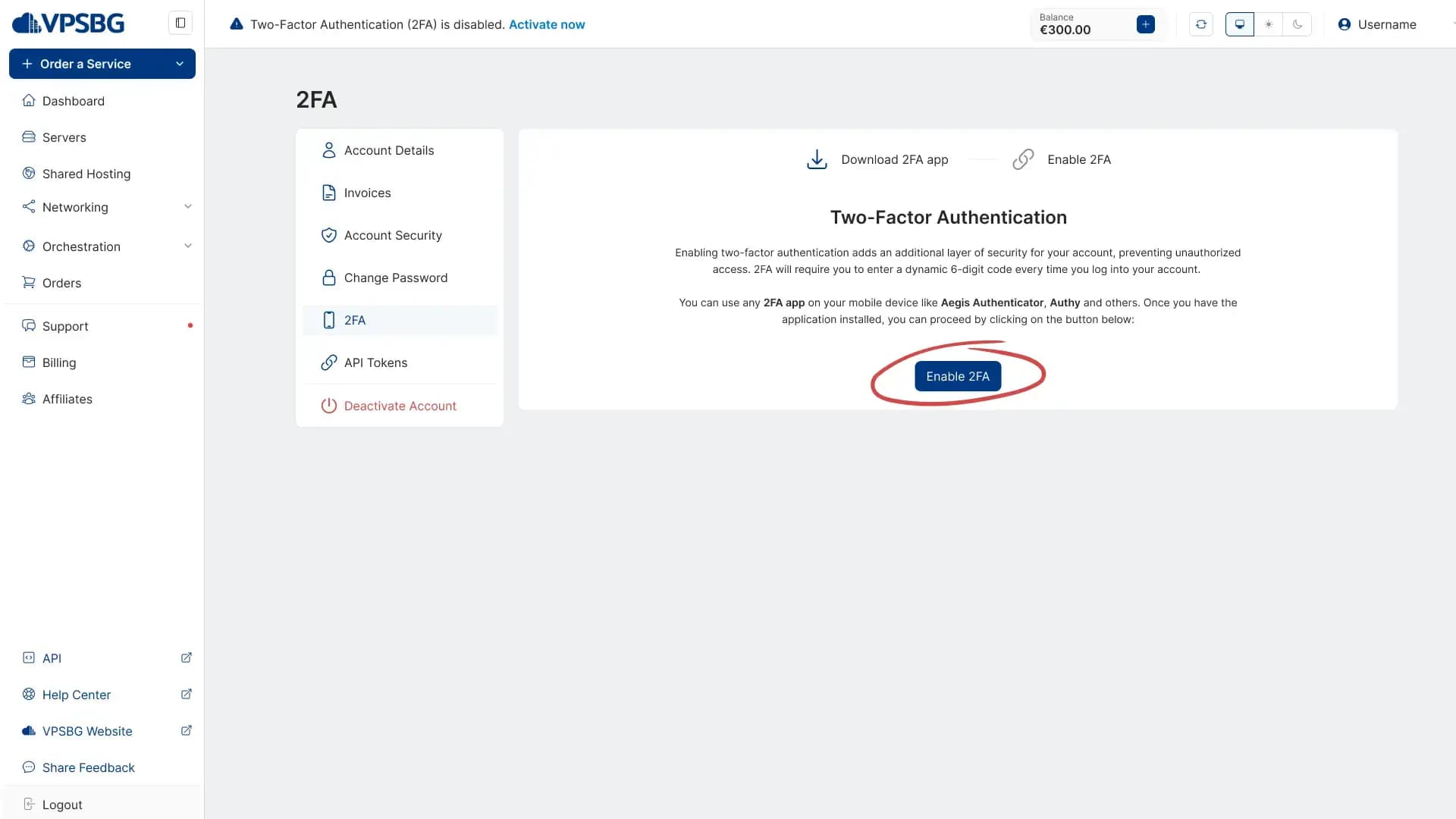
You will need to download a 2FA mobile application such as Google Authenticator or Authy.
Google Authenticator download links: Android, iOS
Authy download links: Android, iOS
Scan the QR codeCopy link
Once you have downloaded and installed the 2FA application of your choice on your mobile, you will need to scan the QR code from our website. Simply open up the app, align the code with the field on your screen and everything will be automatically set up. You should now see your VPSBG account in your app. Next, enter the code from your phone into the Console to finish the activation process and your account should now be protected! Now, on every new sign in, you will be required to also enter the dynamically generated 2FA code alongside your email and password. If you wish to disable the 2FA protection, you can also do so from the same place on the Security page.
Save your recovery codesCopy link
Recovery codes allow you to log in if you lose access to your authenticator app so make sure to store them somewhere safe! Once 2FA has been activated for your account, click on the ‘Get Recovery Codes’ button in the last step of the setup or on the ‘Generate’ button next to ‘Recovery codes:’ in the ‘Two-Factor Authentication’ section of the Security page. You will be presented with 10 codes, which you can copy or download. Keep them somewhere safe, because you will not see them again.
To use one, when you log in and you are asked for your 2FA code, if you don't have access to the 2FA code, click on ‘recovery code’ and enter one of them instead. However, each code works once and we will always email you whenever one is used. Alternatively, you can also ‘Regenerate’ which will replace the whole set and your old codes will stop working right away. And while 2FA will protect your account, make sure to also keep your services secure as well with our 14 tips on how to secure your Linux VPS as well as our detailed tutorial on how to secure your Windows VPS.
If you experience any problems while setting up 2FA authentication for your account, don’t hesitate to contact our support team!